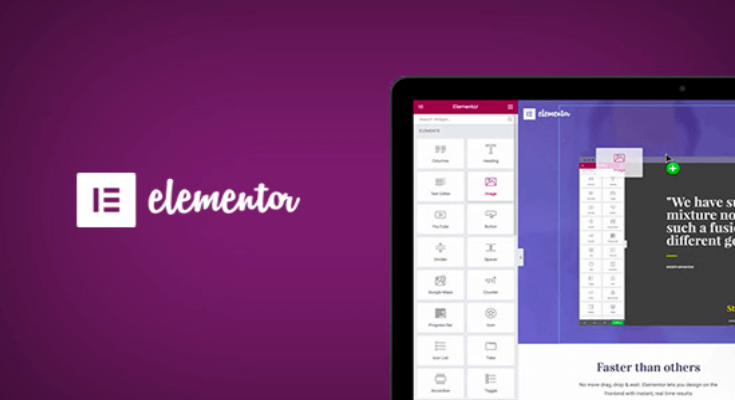
Elementor is one of the most popular WordPress page builders—and the good news is that you can create professional, responsive websites without paying anything. Elementor’s free version is powerful enough for blogs, business sites, portfolios, and landing pages if you know how to use it correctly.
In this guide, you’ll learn how to use Elementor in WordPress for free, what features you get, and smart tips to build stunning pages without upgrading to Elementor Pro.
What Is Elementor?
Elementor is a drag-and-drop page builder plugin for WordPress. Instead of writing code, you design pages visually using widgets, columns, and sections. You see changes in real time, making website building faster and beginner-friendly.
Elementor offers:
- A free version (Elementor)
- A paid version (Elementor Pro)
This article focuses entirely on the free version.
Step 1: Install Elementor for Free
To get started, you need a WordPress website.
How to Install Elementor:
- Log in to your WordPress dashboard
- Go to Plugins → Add New
- Search for Elementor Website Builder
- Click Install Now, then Activate
Once activated, Elementor is ready to use—no payment or license required.
Step 2: Create a Page with Elementor
Now let’s build your first page.
- Go to Pages → Add New
- Enter a page title (e.g., Home, About, Contact)
- Click the Edit with Elementor button
Elementor’s visual editor will open.
Understanding the Elementor Interface
Before designing, it helps to understand the layout:
Left Panel (Widgets & Settings)
- Widgets like Heading, Text, Image, Button
- Style and layout settings
Right Panel (Live Preview)
- Your actual page design
- Changes appear instantly
Bottom Panel
- Responsive mode (Desktop, Tablet, Mobile)
- Undo/Redo
- Preview and Publish buttons
Step 3: Build Layouts Using Sections and Columns
Elementor uses a simple structure:
Section → Column → Widget
Adding a Section:
- Click the + icon
- Choose a column structure (1, 2, or more columns)
Adjusting Columns:
- Resize columns by dragging
- Set spacing, alignment, and background
This structure gives you full control over page layout.
Step 4: Add Free Elementor Widgets
Elementor’s free version includes essential widgets for most websites.
Most Useful Free Widgets:
- Heading
- Text Editor
- Image
- Button
- Video
- Icon
- Image Gallery
- Divider
- Spacer
- Google Maps
How to Add a Widget:
- Drag a widget from the left panel
- Drop it into a column
- Customize text, colors, fonts, and spacing
No coding required.
Step 5: Style Your Page Like a Pro (For Free)
Even without Elementor Pro, you can create modern designs.
Typography & Colors
- Customize fonts, sizes, and weights
- Set global colors manually
Backgrounds
- Use solid colors
- Add background images
- Apply gradients (free feature)
Spacing
- Control margin and padding
- Use responsive spacing for mobile
Step 6: Make Your Page Mobile-Friendly
Elementor allows responsive design for free.
How to Optimize for Mobile:
- Click the Responsive Mode icons
- Adjust font size and spacing for mobile
- Hide sections on mobile or desktop if needed
Your site will look great on all devices.
Step 7: Use Free Templates
Elementor includes free pre-designed templates.
How to Import a Template:
- Click the Folder icon in the editor
- Browse free templates
- Insert with one click
- Customize content
This saves time and ensures professional layouts.
Step 8: Save and Publish Your Page
When you’re done designing:
- Click Preview to test
- Click Publish to make it live
You can edit the page anytime using Elementor.
What You Don’t Get in the Free Version
While powerful, the free version has limitations:
- No Theme Builder (headers & footers)
- No Popup Builder
- No advanced widgets like forms or sliders
- No dynamic content
However, many users successfully run full websites using only free features.
Tips to Maximize Elementor Free Version
- Use your theme’s header and footer
- Combine Elementor with free plugins (contact forms, sliders)
- Keep designs clean and simple
- Optimize images for speed
Final Thoughts
Elementor’s free version is more than enough to build a beautiful WordPress website. With smart layout choices, free widgets, and templates, you can design professional pages without spending money.
If you’re a beginner or on a tight budget, learning how to use Elementor in WordPress for free is one of the best skills you can invest in.